


When it comes to adjusting color in photographs, people often use color correction and color grading interchangeably. Although both of these techniques are related to modifying the color elements of images, they have distinctive purposes and working techniques.
So, color correction vs color grading—which one to choose?
We‘re here to solve all your confusion.
In this blog, we will discuss the concepts of color correction and color grading in photography. You will learn what both of these techniques are, their key differences, get an idea about the industries that use these techniques, and a lot more.
Come on, let’s dive in.
Table of Contents
ToggleWhat is color correction?
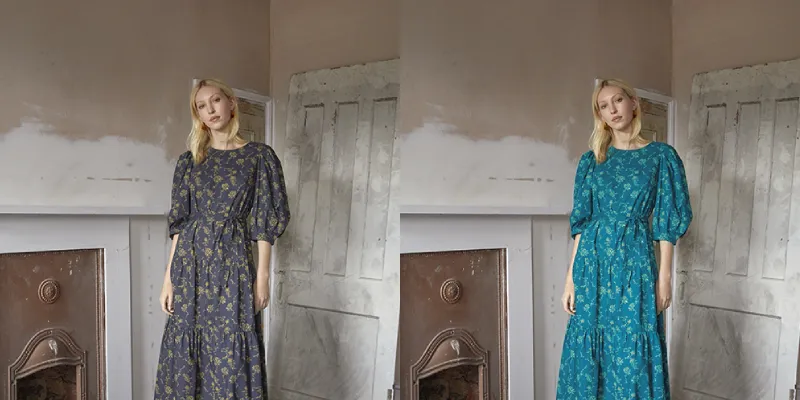
Color correction is a post-production technique used in photography or graphic design to fix color issues. It involves adjusting factors such as brightness, contrast, white balance, saturation, temperature, etc., to make the visuals appear natural to our eyes.
Shooting angles, light temperatures, and other factors can make images look unnatural or way different than they do in real life. For example, skin color may look darker because of shadow, overexposure can wash away colors or the overall image may look more yellowish or bluish due to the time of the shoot and light sources.
This photo editing technique is used to resolve all technical issues and make photographs appear flawless and professional. The purpose of this retouching method is to keep only the color-related components of images accurate, exactly as the human eye sees the real world.
It’s worth mentioning that the editors can’t use their personal preferences during editing. All they have to do is fix the color issues that exist in the images.
Key techniques & tools in color correction
Are you wondering how to color correct? The following are the key techniques and tools used in color correction.
Adjust White Balance
White balance correction is a technique for removing color cast issues from an image. The color tone usually changes due to variations in color temperature. To solve this issue, you can use the eyedropper tool to select a white or grey area in the image. The editing software will analyze that image data and adjust the white balance of the overall image.
In case only a selective part of the image has the color cast issue, you can use selection tools to mark that area. Create a mask to apply the white balance adjustment to the selective areas. There are also numerous presets available for different lighting conditions. You can use them too.
Balance Exposure
Exposure controls the overall brightness of the image. An underexposed image looks darker than the actual scene, whereas an overexposed image appears too bright and washed out. To balance the exposure level of the image, use the brightness or exposure tool. Drag the sliders right or left as per the needs of your image.
You can also use the shadow and highlight tools. Adjusting the values in these tools will allow you to fix the shadows or highlights independently without affecting each other.
Tune Contrast Value
Contrast refers to the overall difference between light and dark elements of an image. So, adjusting the contrast value enhances the visibility and details of the composition. You can drag the slider of the contrast tool to make your desired adjustments.
Change Saturation Value
The saturation level controls the intensity or vibrancy of the colors in photographs. Colors appear too intense when the saturation value is too high. On the other hand, the color of a desaturated image looks muted or greyish. You can use the saturation tool to change the value and get your desired results.